Showing posts with label central administration. Show all posts

Monday, April 22, 2013

UserProfileApplicationNotAvailableException_Logging error within SharePoint 2013

Recently while playing around with UserProfileManager, I came across a very strange issue where I couldn’t find much help on the internet. After some researching here and there, I finally found that the issue was just a permission issue. While trying to use UserProfileManager in my code, I was passing the SPServiceCOntext object to it and while creating an object of UPM, the error I was getting was

UserProfileApplicationNotAvailableException_Logging :: UserProfileApplicationProxy.ApplicationProperties ProfilePropertyCache does not have 607c1325-164c-4da5-8bd0-e28be323a06c

The resolution of this is to assign Full Control permission to the User Profile Service in Central Administration. In my case, it was my account and as I gave it full control, it ran smoothly. Follow the screenshots for details.
Navigate to Central Administration > Application Management > Manage Service Applications and select User Profile Service

Click on Permissions

Add the account which runs the designated code.

Hope this helps someone.

Friday, April 19, 2013

Importing Active Directory profiles to SharePoint 2013

This post describes one way communication of Active Directory users to be brought into SharePoint 2013 environment.
We need an account set up for the AD profile synchronization. Let’s call it “SharePointADSync“, we need to configure a couple of things on this account in AD:

Add “Replicate Directory Changes” permission
  • On the domain controller, click Start, click Administrative Tools, and then click Active Directory Users and Computers.
  • In Active Directory Users and Computers, right-click the domain, and then click Delegate Control.
  • On the first page of the Delegation of Control Wizard, click Next.
  • In the Users or Groups page, click Add.
  • Type the name of the synchronization account, and then click OK.
  • Click Next.
  • In the Tasks to Delegate page, select Create a custom task to delegate, and then click Next.
  • On the Active Directory Object Type page, select This folder, existing objects in this folder, and creation of new objects in this folder, and then click Next.
  • On the Permissions page, in the Permissions box, select Replicate Directory Changes, and then click Next.
  • Click Finish

Follow these steps now to import AD profiles to SharePoint.

Go to Central Admin. Click Manage Service applications under Application Management.

From the list of services, click on the User Profile Service Application
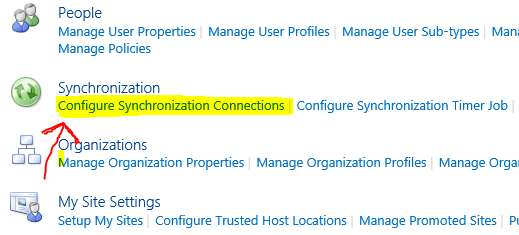
Under Synchronization, click Configure Synchronization Settings

Select the “Use SharePoint Active Directory Import” radio button under Synchronization Options. Click OK to save settings. You will then be redirected to the User Profile page.
Under Synchronization, click Configure Synchronization Connections and create a new connection.

Fill in appropriate values and click Populate Containers. Once the containers are populated, check the ones you would like to import to SharePoint and save the connection. In the Account name, enter the SharePointADSync account details that we have created for this purpose. 

No you can go ahead and do a full import, which will import the selected profiles to your SharePoint.

Tuesday, April 9, 2013

Step by Step Installation guide for SharePoint 2013


Installing SharePoint 2013 is very simple and almost same steps as we had followed when we installed SharePoint 2010. In this post I will explain step by step installation on a Stand Alone system used for trial or development purposes.
I have already installed Windows Server 2012 in my VM so I am good to go for my SharePoint 2013 installation.
Download the ISO for SharePoint and mount it. For mounting, just right click and say Mount.
Let us install the Pre-requisites first. Follow the screenshots below for clarity.

 Check the Accept checkbox and click Next
 Sit back and wait for the pre-requisites to be installed
 Click Finish and restart your system
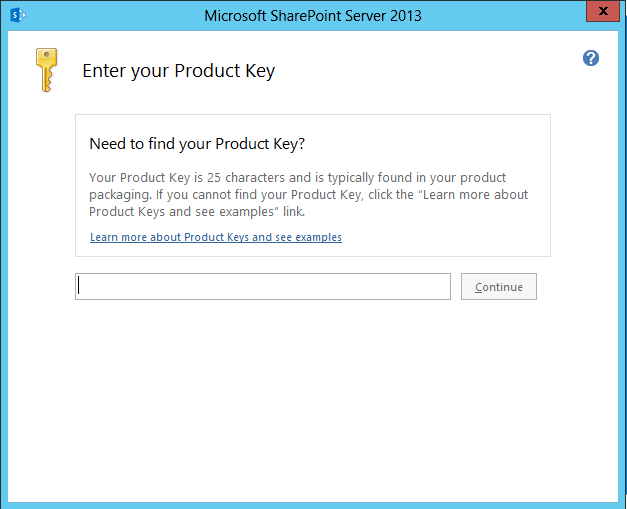
 Once you restart the installer will continue and finish the installation. Then its time to double click the Setup.exe and start installing SharePoint 2013. The first thing you will see is that it will ask you to enter your Product Key. Enter the key and click on Continue.
 Once again it will ask you to accept to their terms which anyways we all have to.
Select the Server type, in my case I wanted a Stand Alone as I use this for development purposes. You can select your case and say Install Now. 
By default SharePoint will be installed in your C drive, I recommend you do not change it. However if that is one of your requirement, you can do it now in the File Location tab.
 Sit back, relax and wait for the installation to finish

Installation is complete now and you can now configure your SharePoint 2013


Finally, the installation is complete and now you will be asked to create the first SharePoint 2013 site and bingo, you have installed SharePoint 2013 successfully. You can now browse to the Central Admin and create Web applications, site collections and dive into the deep SharePoint sea.

Like us on Facebook for more SharePoint 2013 updates.

Thursday, March 7, 2013

SharePoint2010 : Introduction to Record Center

The Records Center is intended to serve as a central repository in which an organization can store and manage all of its records. The Records Center supports the entire records management process, from records collection through records management to records disposition.

When we are implementing Document Management within our organization, and we have thousands of documents to maintain within a library whereas many of them are historic, and we do not use them very often, it makes sense to keep them separate and not clog your library with huge number of items. Hence, SharePoint gives us the flexibility for document retention using Record center. We can create record center and send our documents to it once they are approved and are in their final version. Sending to Record center can be of three types mainly: 
  • Copy the document to Record Center 
  • Move the document to Record Center
  • Move to the document to Record Center and Leave a link
As per the business case, we can implement any of the above mentioned way to treat our items within the library. 

Steps to implement Document Management through Record center: 

Monday, February 11, 2013

The search request was unable to connect to the Search Service : SharePoint 2010


Its a monday morning and we ran into a issue where the search wasnt working. The error message I was getting was 

The search request was unable to connect to the Search Service

I followed the following options to resolve the error. Hope you will find your solution within them.


  • Central Admin > Application Management > Manage Web Application > select your SharePoint site > Service Connections
    • Check whether the Search Service Proxy is checked or not, if not please tick the same and save. This will resolver your issue.

  • Central Admin > General Application Settings >  Farm Search Administration > click on your search service 
    • Under Search Application Topology on the bottom of the page, make sure the status for all the categories is ONLINE. My problem was that the Query Component 0 was saying "Not Responding" which was running on my Web Front End Server. So I logged in to my WFE and followed the following steps to resolve the issue :
      • Go to Services.msc and make sure SharePoint Server Search 14 service is Running

Issue Resolved !!  Hope this helps someone.

Friday, February 8, 2013

SharePoint 2010 : No available sandboxed code execution server could be found

This might cause your sand boxed cause to seize and not perform their regular functions.

You need to re-start(Stop and Start again) the Microsoft SharePoint Foundation Sand boxed Code Service from services on server. You might see that it is already started, still just Stop the service and Start again.

Central Administration > System Settings > Servers > Manage Services on server > Start the Microsoft SharePoint Foundation Sand boxed Code Service

Try this at first instance which might resolve your error. If this doesn't work, you can email me and we can work it out together.