Showing posts with label javascript. Show all posts

Tuesday, June 18, 2013

Using JQuery to hide SharePoint 2013 List Item fields

Hiding unnecessary fields in DispForm.aspx/EditFOrm.aspx is something most of us implement within our SharePoint implementations. Here is a quick way to achieve that using JQuery.
Hiding any List Item fields
So you have many fields in your NewForm.aspx but you want to hide some like in the screenshot. I want to hide the fields I haven’t underlined.


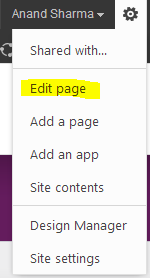
I will click on Edit Page, and add a Script  Editor webpart on the page. From the below script, just change the number in which your fields appear on the page using a 0 index. So to hide the first field, enter 0, second field – enter 1 and so on.


Also you can do some formatting on your page using Jquery, for example I am making the font as BOLD for the list item entries.
$(".ms-formbody").css("font-weight","bold");

Also,
I want to hide the information in the screenshot, you can add this line as well.


$(".ms-descriptiontext").css("display","none");
Hope this helps someone looking for a similar scenario.

Thursday, May 23, 2013

SharePoint 2013: Working with sp.js files and Publishing pages

So you are trying to write Javascript code in SharePoint 2013 and want to load the sp.js file before your custom function is called. And for that you have used.
ExecuteOrDelayUntilScriptLoaded(“your javascript function”, "sp.js");

But it’s not working. Sad, isn’t it ?
The reason is that, with SharePoint 2013 publishing pages the above syntax doesn’t work. You need to register using the below syntax
SP.SOD.executeFunc('sp.js', 'SP.ClientContext', “your javascript function”);

I struggled 2 hours to find this MSDN article which showed me the right way.


Wednesday, May 22, 2013

Retrieving SharePoint List Items using Javascript in a Custom Webpart


So you want to fetch list items but do not want any post back, yes we can implement that using Javascript within our custom webpart by using a client control. 

Let me explain that in a step by step process
  • Create a new Visual Webart Project in VS 2012.
  • Give it a proper name and make it a Farm level solution.
  • Now delete the existing Visual WebPart item within the solution (to remove the default name) and add a new item – Visual WebPart and give it the desired name.
  • Open ascx file and copy paste the code below
<%@ Assembly Name="$SharePoint.Project.AssemblyFullName$" %>
<%@ Assembly Name="Microsoft.Web.CommandUI, Version=15.0.0.0, Culture=neutral, PublicKeyToken=71e9bce111e9429c" %> 
<%@ Register Tagprefix="SharePoint" Namespace="Microsoft.SharePoint.WebControls" Assembly="Microsoft.SharePoint, Version=15.0.0.0, Culture=neutral, PublicKeyToken=71e9bce111e9429c" %> 
<%@ Register Tagprefix="Utilities" Namespace="Microsoft.SharePoint.Utilities" Assembly="Microsoft.SharePoint, Version=15.0.0.0, Culture=neutral, PublicKeyToken=71e9bce111e9429c" %>
<%@ Register Tagprefix="asp" Namespace="System.Web.UI" Assembly="System.Web.Extensions, Version=4.0.0.0, Culture=neutral, PublicKeyToken=31bf3856ad364e35" %>
<%@ Import Namespace="Microsoft.SharePoint" %> 
<%@ Register Tagprefix="WebPartPages" Namespace="Microsoft.SharePoint.WebPartPages" Assembly="Microsoft.SharePoint, Version=15.0.0.0, Culture=neutral, PublicKeyToken=71e9bce111e9429c" %>
<%@ Control Language="C#" AutoEventWireup="true" CodeBehind="VisualWebPart1.ascx.cs" Inherits="TestJavaScript1.VisualWebPart1.VisualWebPart1" %>

 Test 


Here I am using client control and not any server control so there will not be any post back experience.
If you wish you can add more functionality to this same webpart and use it in your real world scenario like adding server controls to it and then writing some code behind for it and so on.

Saturday, July 21, 2012

Cascading Dropdown in MOSS 2007

What is a Cascaded Dropdown?

A Cascaded dropdown is a combination of two dropdown lists. By selecting a value in the first one the options in the second get filtered according to its “parent” selection.
Sample uses:
Continents – Countries – Cities,
and many others ....

Solution :-

Download the Javascript here

Upload it to any document library in your site (assuming its hidden from users, you will not want users to modify it and give you a shock)

Right click on the javascript we just uploaded and click on "Copy Shortcut"

Now in the custom list New Form/Edit Form, add a Content Editor Webpart and make it hidden

Edit the WebPart properties and click on "Source Editor"

Paste the following line - 

void ParentDropDownList_SelectedIndexChanged(object sender, EventArgs e) 

     ChildDropDownListFieldControl child = (ChildDropDownListFieldControl)
               FindControlRecursive(this.Page, "ChildDropDownList").Parent.Parent; 
     child.SetDataSource(ParentDropDownList.SelectedValue); 
} 

There you go !!!
Hope this solution works for you.