Showing posts with label dropdown. Show all posts

Tuesday, July 30, 2013

Using Filters within InfoPath Data connection

I have been asked a number of times by various community members on how to fetch SharePoint list values within the Data connection based on certain condition, so I thought to write a post about it and spread the word.
InfoPath allows us to create data connections and fetch values from any SharePoint list. We can also select which column values we want to select. The data connection will then return all the items within the list, to control which value(s) we want to fetch, we can apply filters.

filters Click on the Dropdown properties and select/add a Data connection. In the Entries field, click the XPath selector button which will enable us to select which column value we want to bind to the dropdown control.
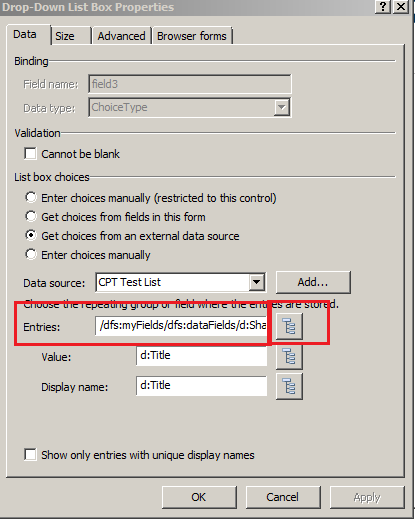

Select the parent node and click on Filter Data... to bring up the filter choices


Click on Add filter option and then you can select your InfoPath controls to create a condition for fetching the values from the list.


Click on Ok and run the form to verify. The list of values will be based on the conditions being set within the filter.

Monday, July 29, 2013

InfoPath dropdown with different Value and Display Name

InfoPath dropdown comes with an ability to have different values being sent to the list/database and a different value to be viewed by users. For eg., you bind a dropdown which fetches users from a SharePoint security group and you want to display the “Display Name” attribute of the user within the dropdown values at the same time you want to map this field to a People picker field within the list and for that purpose you want to send the “Login Name” attribute to the people picker field. In such a scenario, follow the screenshots to create a similar functionality.

Click on the Dropdown properties

Select the datasource from the Data source dropdown or you can create one here as well. Then click on the Select XPath button (highlighted in the image).
In the Entries field, select the parent node and click OK.
This will enable you to select two different values for the Value and the Display Name field.
Now from the returning values, select the ones you want for each field and save your form.
To view your changes, you may want to publish the form and verify the changes.